![Distributely Google Responsive Ads_Square Logo V6.png]](https://knowledge.distributely.com/hs-fs/hubfs/Distributely%20Google%20Responsive%20Ads_Square%20Logo%20V6.png?height=50&name=Distributely%20Google%20Responsive%20Ads_Square%20Logo%20V6.png)
Note that individual user daily scheduling, time off, and capping, are handled natively in Distributely and would not need any customization in Hubspot. Please contact us for any assistance with setup or configuration.
____________________________________________________________________
This HS KB article outline the current logic around delays set on workflows: https://knowledge.hubspot.com/workflows/manage-your-workflow-settings
Importantly, it notes:
- If a record reaches an action outside the specified days and time: the workflow will reschedule the action for the earliest available time on the next available day.
- If a record reaches an action outside the specified days but during the specified execution hours: the workflow will reschedule the action for the same time on the next available day.
Let's say that you only want for leads to get assigned from Tuesday 9am-5pm and Thursday 12pm - 10pm. If you set your Hubspot workflow delay to only be active during this time. An object enrolled on Monday at 4pm won't run through the workflow until Tuesday at 4pm. If you want instead for this object to run through the workflow at Tuesday at 9am, you can do this with a few custom properties and helper workflows. In the following example, I'll refer to a deal object, but this will work for any object type.
At a high-level, you will need the following:
-
A property that determines the day of the week that the deal is created (eg Monday, Tuesday, etc.)
-
A property that calculates the date that the deal is created in date format as opposed to date and time format
-
A property that calculates the hours between the date that the deal was created (date only) and the date that the deal was created (date and time) - more on this below.
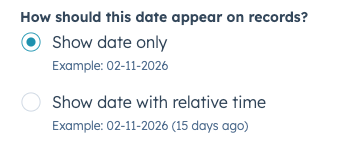
Step 1) Create a "Create Date No Time" deal property. Hubspot handles date properties one of two ways, either as a date and time or a date. If a property is only a date property, then Hubspot will assume a time of 12:00:00 am. You can therefore use the delta between this property, and the default deal create date property to determine the time of day that the deal was created. When configuring this property, select a field type of "date picker" and "show date only."
Step 2) Create a "Create Time Calculation" deal property. This property will calculate the time of day that the deal is created by looking at the time between the "Create Date No Time" and the "Create Date" properties. As the Create Date No Time" will have a time stamp of 00:00:00 and the native "Create Date" property will have a time stamp representative of when the deal is created, you will be able to use this to determine what time of day the deal is created. 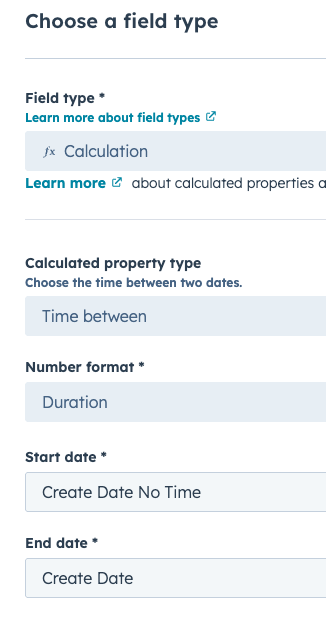
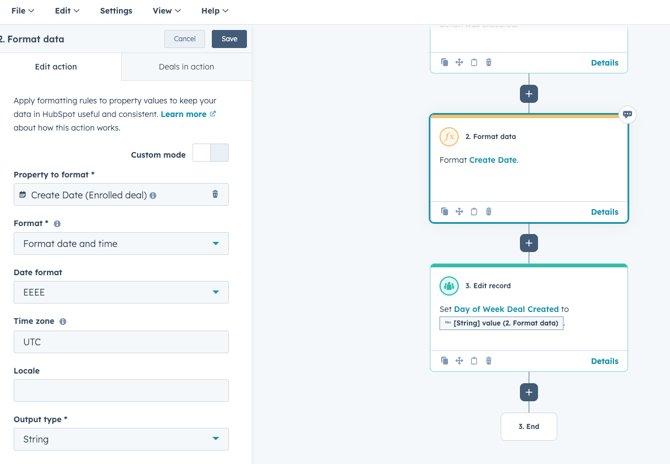
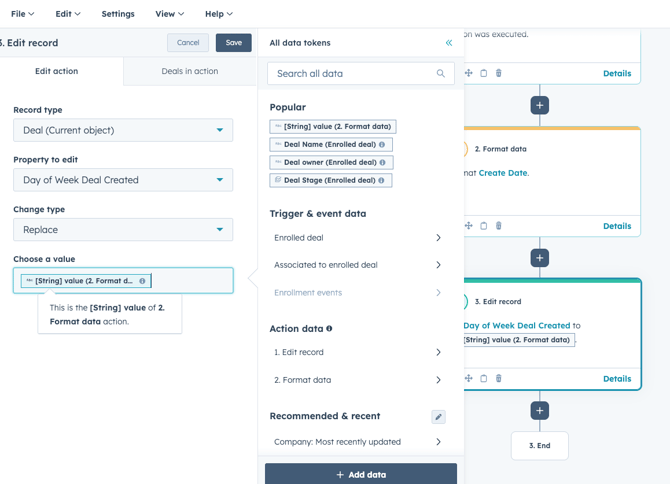
Step 3) Create a "Day of the Week Deal Created" deal property to capture the day of the week that the deal is created (eg. Monday, Tuesday, etc).This property will be populated via workflow (more on this below). This property will be single-line text.
Step 4) Create the workflow to populate the "Day of the Week Deal Created" property. Use the following 4 screenshots as a template for this workflow. This will automatically populate this property whenever a deal is created.
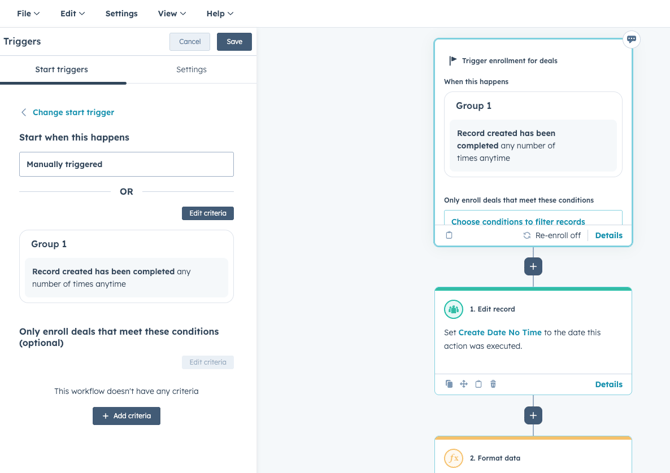
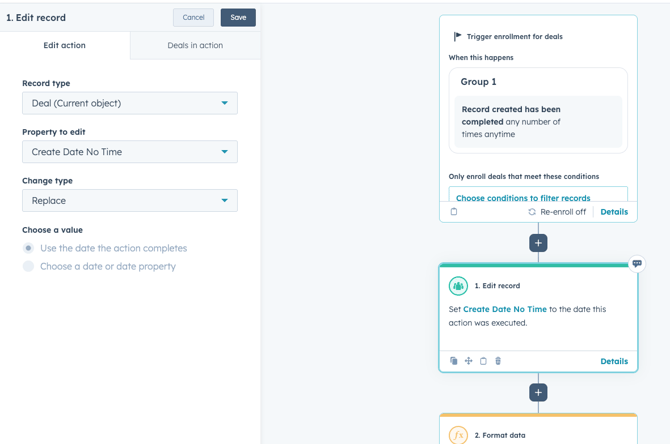
Need more help? Contact us and our revenue operations team can help solve this, and any other Hubspot challenge you have!